Features
Blaze is an integrated development environment with a built-in AI agent that carries the work from requirements to release. It understands the latest state of the connected org as you manage and develop.
Requirements
Clarify the request through questions・Produce a requirements doc with diagrams
Requirements document
Tell Blaze what you need and get a requirements doc
- Your answers become Salesforce requirements
- Blaze asks in turn about the business context, stakeholders, must-have and optional requirements, and constraints.
- Business flows and ER diagrams, drawn
- It produces business flows, ER diagrams and state transitions as actual diagrams.
- Ready to hand over
- Export to PDF, Word or Markdown. Blaze does not touch your org during this step.
Design
Inspect the current org・Compare options and settle the data model
Org investigation
Blaze inspects your org first then proposes options and a data model
- Checks the current org automatically
- It reads existing objects, fields and automation, and confirms what can be reused.
- Choose from several options
- It compares using standard objects with building custom ones, and aligns on the approach with you.
- Data model, screens and validation rules
- ER diagrams, page layouts, validation rules and state transitions are decided before building.
Build
Configure and develop in Salesforce・Deploy to the org after approval
Objects, fields and permissions
Objects, fields and permissions set up just by asking
- Proposals that fit your org
- It checks existing objects and fields before proposing a change.
- Page layouts and apps too
- Page layouts, Lightning apps, tabs and navigation are arranged in conversation.
- Profiles, permission sets and sharing rules
- Even complex access settings are finished in chat.
Flows
Build flows and fix their errors in conversation
- Builds flows and approval processes
- Describe the conditions and steps, and Blaze builds the flow or approval process.
- Fixes errors in existing flows
- It finds the cause, fixes it and checks that it works.
- Follows Salesforce conventions
- For example, it deactivates a flow instead of deleting it.
Apex and LWC
Apex and LWC down to the test classes
- Writes classes and triggers
- It writes Apex classes and triggers from your requirements.
- Lightning components too
- It builds LWCs, and you can check them right away in a live preview.
- Test classes, automatically
- It writes Apex test classes and runs them in your org.
Agentforce
Build Agentforce agents in conversation and test them inside Blaze
- Creates topics, actions and instructions
- Agent settings are created and edited in conversation.
- Check the behavior right there
- Talk to the agent from inside Blaze and check its responses and actions.
- Connects to Salesforce data
- Flow and Apex actions can be prepared in the same conversation.
Canvas
Analyze data with AI and share it as a dashboard
- Say what you want to know in chat
- Blaze fetches the Salesforce data and analyzes it as instructed.
- See the results as charts and tables
- Results are gathered into a dashboard that you can review and edit on the canvas.
- Share the results
- Share the dashboard with a password-protected URL.
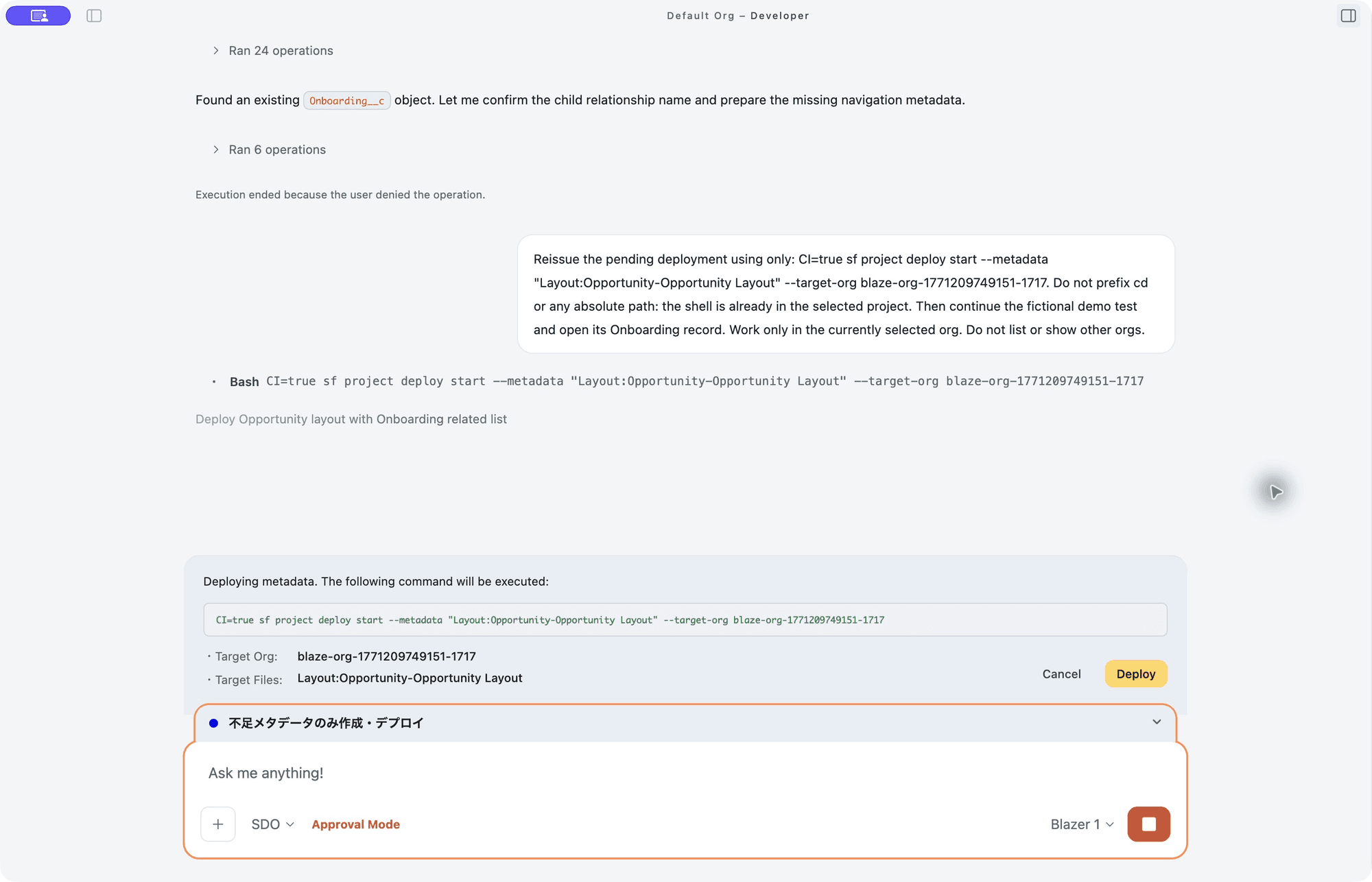
Approval Mode
Run AI safely even in production
- Allow, always allow or deny
- Blaze stops right before it changes metadata, updates data or deploys, and you choose on the spot.
- Production shows the org name
- For production deployments and data deletion, it shows the target org name and asks for approval.
- Switch from the input box
- Approval Mode is a toggle in the input box menu.
Test
Write and run test classes・Check screen behavior in a browser
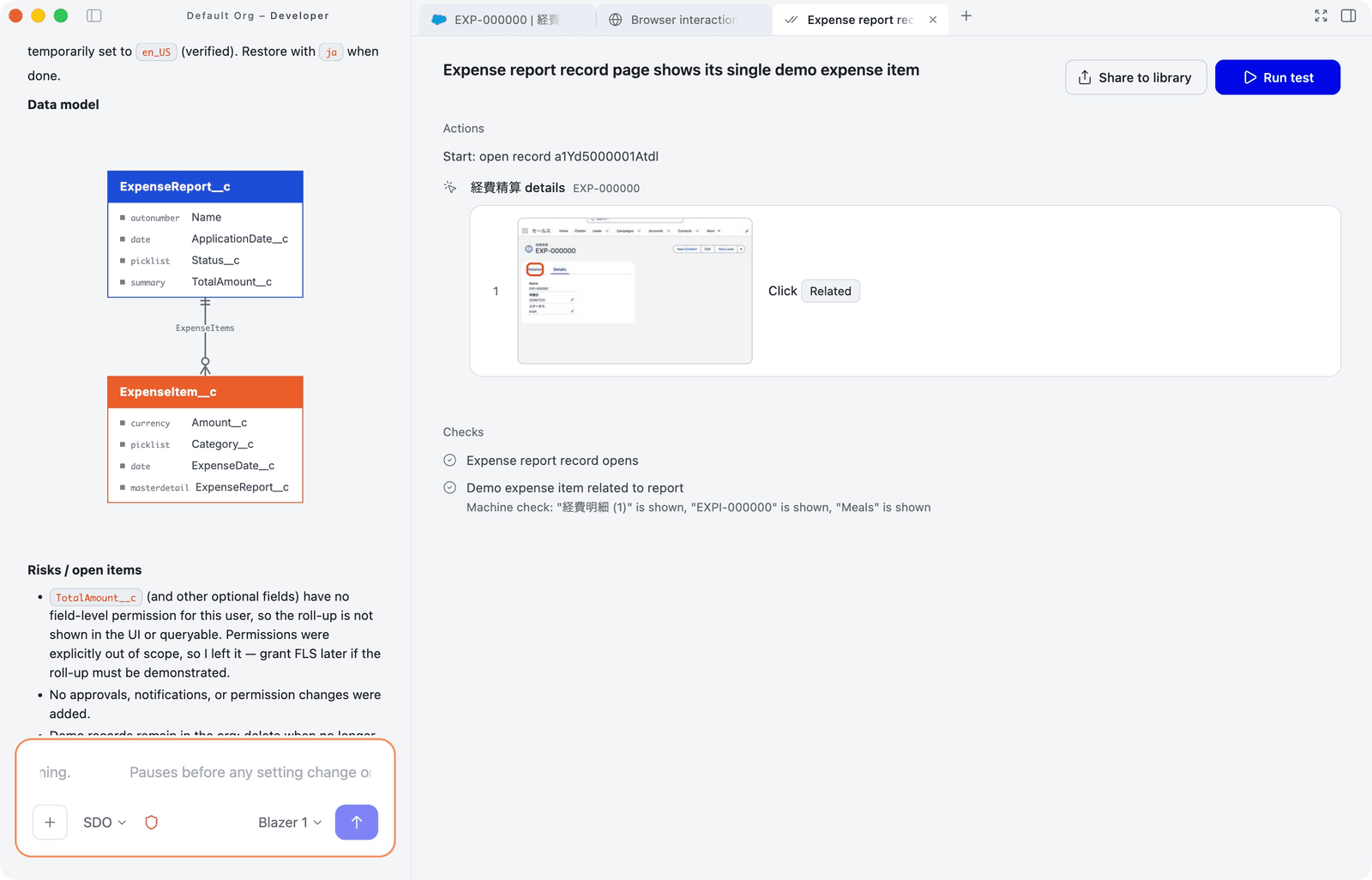
Browser testing
Blaze runs the tests on the real screens too
- Operates the in-app browser
- Blaze reads the screen, clicks and types, and checks that it works as intended.
- Save a test and run it again
- The steps are saved as a test that you can rerun, edit and share with your team.
- Regression and acceptance tests
- After a change, check that existing operations still work.
Release
Review the diff and deploy to production・Record changes and roll back
Deployment and change management
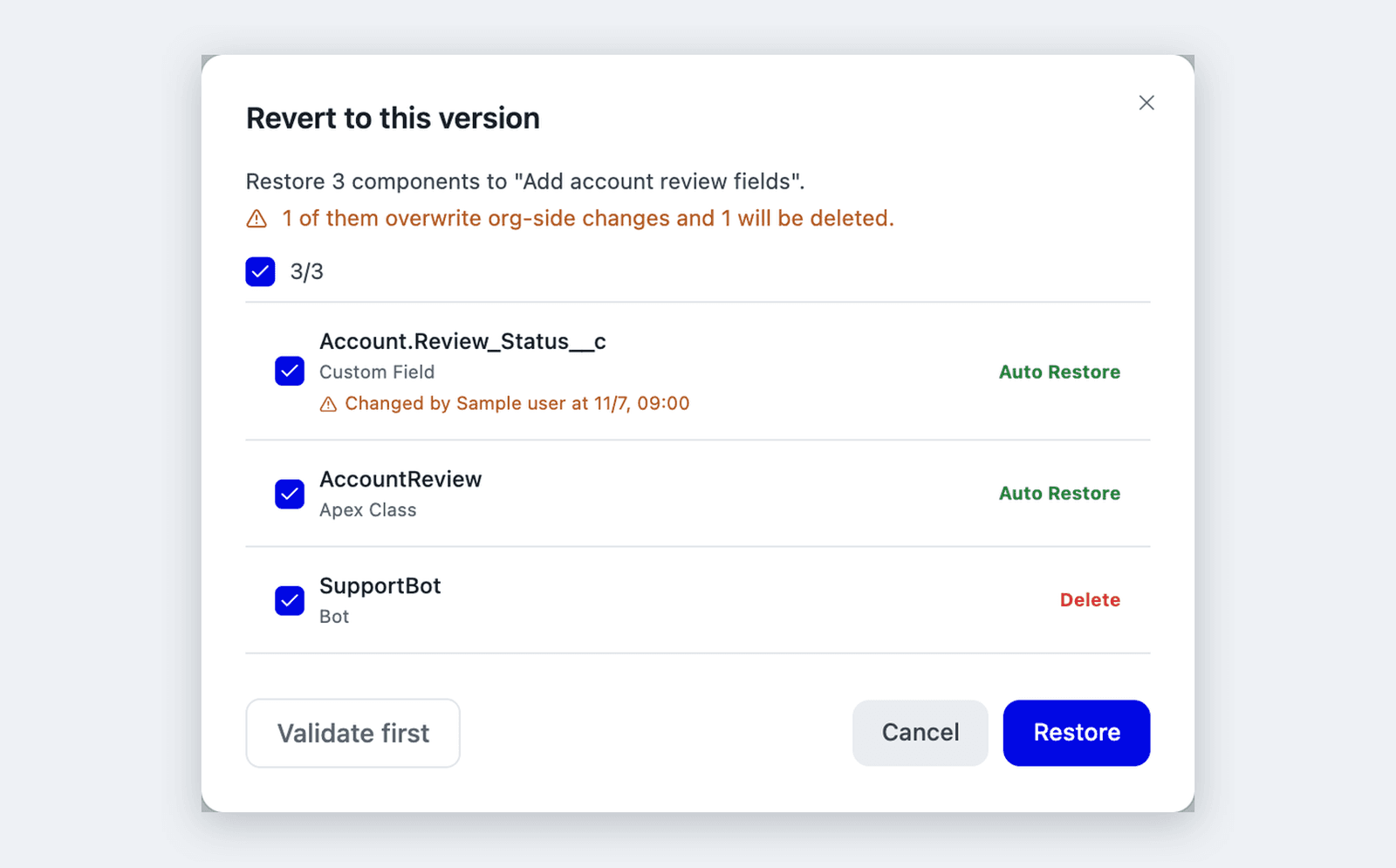
Record Salesforce changes and roll back to any point
- Finds the diff and deploys
- It deploys from sandbox to production while reviewing the diff, and runs post-deployment checks automatically.
- Roll back in one click
- Blaze records its changes, and validates the rollback against the org before applying it. No Git installation needed.
- Push and pull with GitHub
- If your team uses Git, push and pull to GitHub from change management.
Sharing
Share Skills and prompts across your organization・Check usage from the admin console
Skills and custom prompts
Share Skills and prompts across your organization
- Turn routine work into a Skill
- Package routine work as a Skill and call it when needed. Custom prompts insert instructions such as your development standards every time.
- Share to the organization library in one click
- Press “Share to library” in settings to register it in your organization's library. Members just press “Add to Blaze” to use it.
- Version history with rollback
- Blaze records who changed what and when. Review the diff and go back to an earlier version.
Skills and prompts a member made
Organization library
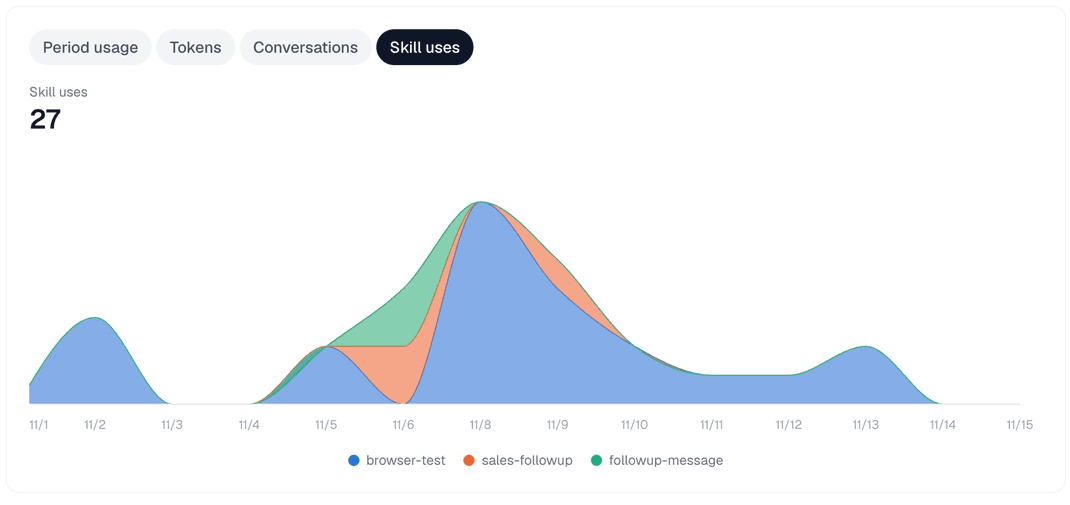
Usage visibility
See your team's usage from the admin console
- Usage
- See credits by model provider, input and output tokens, and the number of conversations.
- Skill usage
- See how often each Skill was used, and by how many members.
- By Salesforce org and by member
- See users, conversations and credits for each org, and conversations for each member.
- Conversation content is not shown
- Only usage records appear. The content of conversations is not displayed.
Connected apps (MCP)
Connect 70+ apps just by signing in
- Connect just by signing in
- Connect apps such as Slack, GitHub, Backlog, Notion and Google Workspace just by signing in.
- Add apps that are not on the list
- Apps not on the list can be connected by adding an MCP server.












Blaze CLI
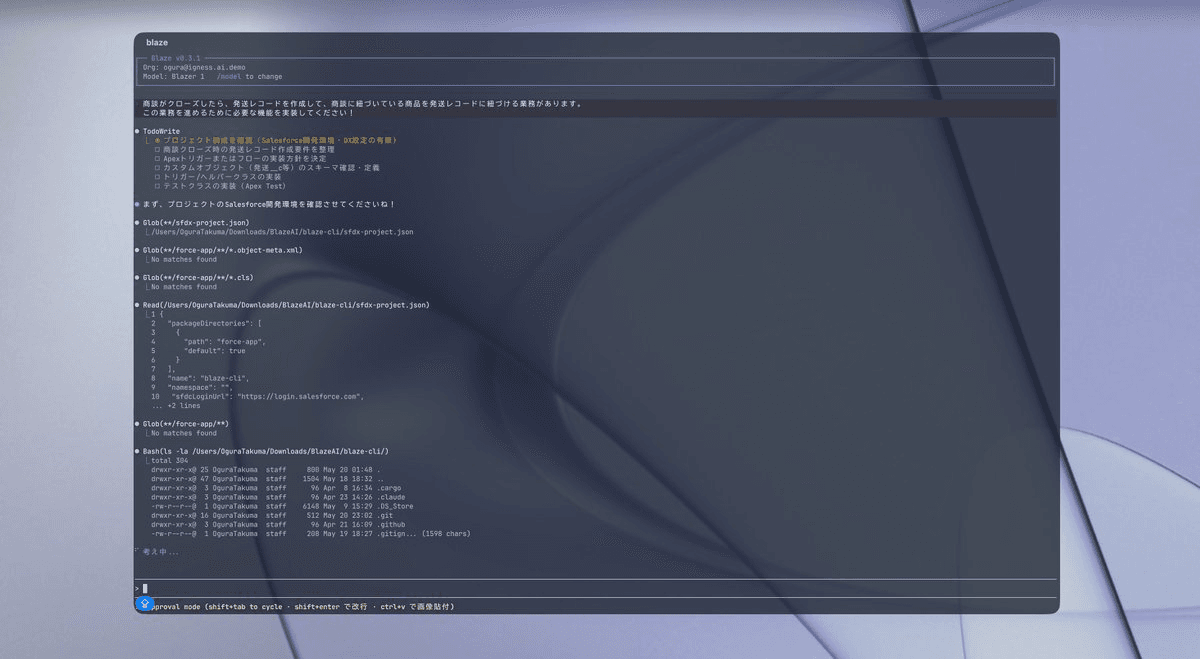
Develop Salesforce from your terminal
- Slash commands
- Operate quickly from the terminal with commands such as /model and /org.
- Sessions and resume
- Conversations are saved, and you can pick up where you left off with --resume.
- Hooks and automation
- Run any command at points such as SessionStart and Stop. Use it for notifications, logging and CI.
- Local LLMs and your own keys
- Works with local LLMs through Ollama, and with your own OpenRouter or OpenAI API keys.
More features
Org investigation and health check
Blaze compiles unused fields and flows, licenses and Lightning migration readiness into a report.
Subagents
Complex work is split up and handled by several subagents in parallel.
Search panel
Search conversations, settings, tests, canvases and files in one place.
Image generation
Generate images for HTML emails in Account Engagement and MC Next.
Multiple org connections
Switch between production, sandboxes, scratch orgs and Developer Edition orgs.
Launcher
Open a small input window with a shortcut and ask from any screen.
Salesforce admin and development in one app